3D Cell visualization
MPX support has been removed from pixelator in versions after
v0.30.0.
To run the code in this tutorial, pin your installation to that release:
pip install pixelgen-pixelator==0.30.0
In this tutorial, we will make 3D visualization of the graph components that constitute cells in MPX data using Python.
Setup
import numpy as np
import pandas as pd
import seaborn as sns
import matplotlib.pyplot as plt

from pathlib import Path
from pixelator.mpx import read, simple_aggregate

import plotly.graph_objects as go
import plotly.io as pio
from plotly import subplots

pio.renderers.default = "iframe_connected"
DATA_DIR = Path("<path to the directory to save datasets to>")
Load data
In this tutorial we will continue with the stimulated T cell data that we analyzed in the previous tutorial (Karlsson et al., Nature Methods 2024).
pg_data_combined = read(DATA_DIR/ "uropod_spatial.pxl")

polarity_scores = pg_data_combined.polarization
colocalization_scores = pg_data_combined.colocalization
edgelist = pg_data_combined.edgelist
Now we can select components with high colocalization for a specific marker pair to get some good example components to work with. First, we will filter our colocalization scores to keep only CD162/CD50 and then we will add the abundance data for CD162, CD37 and CD50 to the colocalization table.
# Create a new columns with marker_1/marker_2 using iloc
colocalization_scores['contrast'] = colocalization_scores['marker_1'] + '/' + colocalization_scores['marker_2']
colocalization_scores = colocalization_scores[colocalization_scores['contrast'] == 'CD162/CD50']

# Fetch data from pg_data_combined and convert to a DataFrame
marker_counts = pg_data_combined.adata.X[
    :, pg_data_combined.adata.var.index.isin(["CD162", "CD37", "CD50"])
]
marker_counts = pd.DataFrame(
    marker_counts,
    columns=["CD162", "CD37", "CD50"]
)
marker_counts["component"] = pg_data_combined.adata.obs.index

# Merge the colocalization scores and marker count data dataframes on 'component'
colocalization_scores = colocalization_scores.merge(marker_counts, on='component', how='left')
Next, we will select components with high colocalization scores for CD162/CD50. In the histogram below, we see the distribution of Pearson Z scores for the CD162/CD50 colocalization. Since we want to narrow down the selection of components, we set a threshold for the Pearson Z scores. Here, we use a threshold of 35 to keep the components with the highest colocalization scores. Note that the threshold is arbitrary and should be adjusted based on the data.
# Set Pearson Z threshold
pearson_z_threshold = 35

sns.histplot(colocalization_scores['pearson_z'], bins=50)
plt.axvline(pearson_z_threshold, linestyle="--")
plt.title("Pearson Z scores [CD162/CD50]")
Text(0.5, 1.0, 'Pearson Z scores [CD162/CD50]')
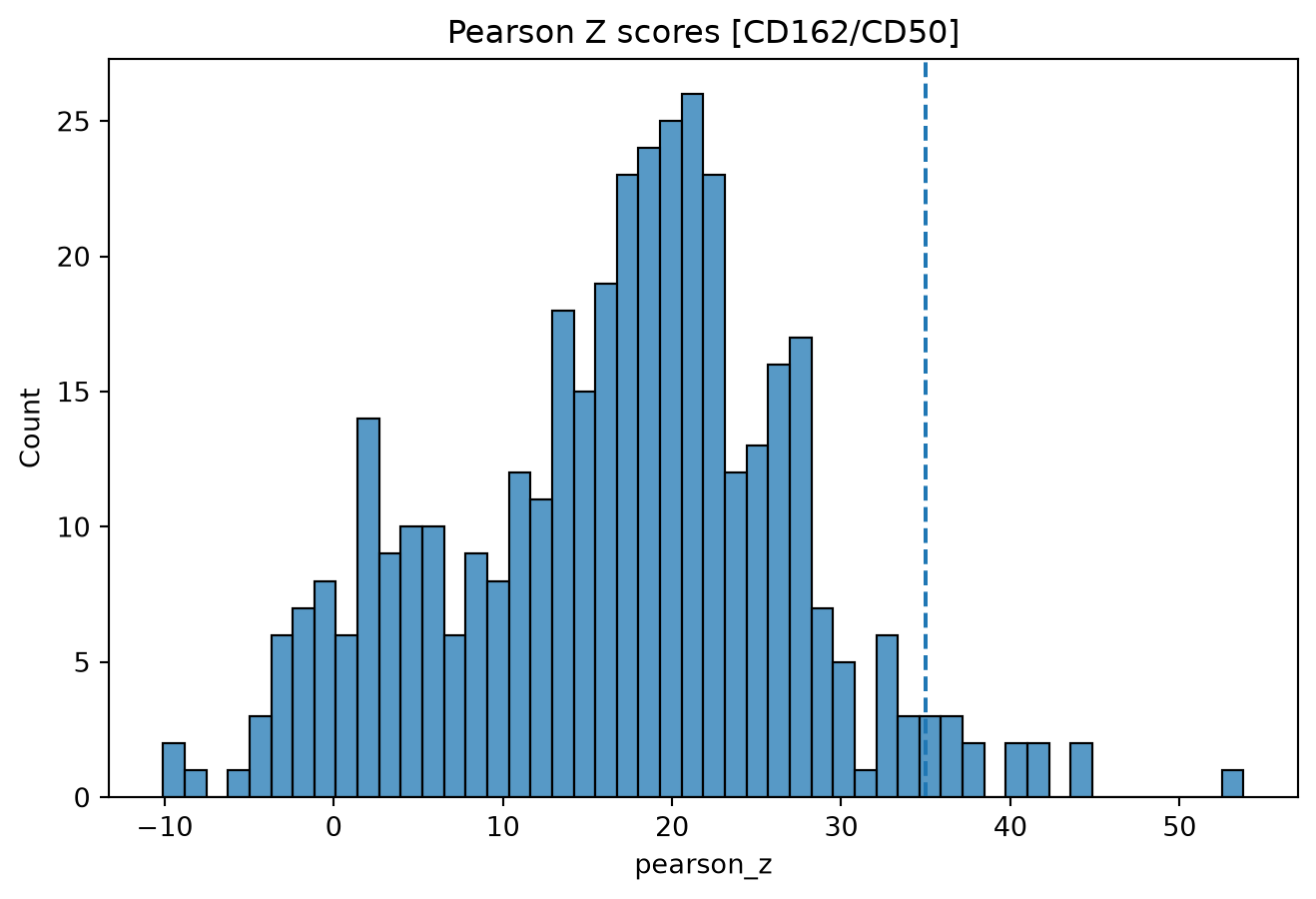
Then we apply our threshold to get a final selection of 7 components.
plot_components = colocalization_scores[
    (colocalization_scores['pearson_z'] > pearson_z_threshold)
].sort_values(by='CD162', ascending=False)

plot_components = plot_components[["component", "pearson_z", "CD162", "CD50", "CD37"]]
plot_components
| component | pearson_z | CD162 | CD50 | CD37 | |
|---|---|---|---|---|---|
| 142 | 61cb84c709f41e7b_Stimulated | 41.687521 | 947 | 1222 | 631 |
| 160 | 59b284adcc91ec91_Stimulated | 44.136111 | 789 | 864 | 448 |
| 173 | 23606c9599265d9a_Stimulated | 40.091311 | 690 | 707 | 452 |
| 208 | 18278b69dc73ad16_Stimulated | 41.707346 | 486 | 736 | 249 |
| 209 | 437d692c40d6d601_Stimulated | 53.791253 | 450 | 493 | 286 |
| 254 | 50cd2ae85ea1c0e1_Stimulated | 44.591328 | 414 | 651 | 287 |
| 149 | 19ab7abc50018ac8_Stimulated | 40.458924 | 303 | 467 | 116 |
| 135 | 898664166bbd71ae_Stimulated | 35.591388 | 301 | 626 | 317 |
| 241 | d33f7aa55f7874ff_Stimulated | 36.517807 | 220 | 238 | 112 |
| 179 | 7778298975953f4f_Stimulated | 36.881728 | 216 | 420 | 138 |
| 348 | 703a192bee0b36f2_Stimulated | 37.979454 | 197 | 183 | 178 |
| 249 | f4d9b2d31012177a_Stimulated | 38.389434 | 178 | 161 | 119 |
| 167 | bd77e6c5f6e229e5_Stimulated | 36.717635 | 153 | 289 | 108 |
| 277 | 60523a26c6f19593_Stimulated | 35.865508 | 136 | 111 | 38 |
| 228 | 8a91a136efcae912_Stimulated | 35.421162 | 68 | 118 | 69 |
In addition to 2D layouts, we can also create three-dimensional layouts to visualize single cells. The pivot multidimensional scaling (pmds), Kamada–Kawai and Fruchterman-Reingold algorithms that we used in 2D Cell Visualization can also be used to create 3D layouts. With pixelator version >0.17 you can specify to pre-compute layouts which will be stored in the PXL file.
Now we can check if a pre-computed layout exists in our data set and otherwise generate a new 3D layout. Here we will use weighted pmds (wpmds_3d) to generate the 3D layout, which is similar to pmds but improves the results by leveraging edge weights based on transition probabilities in the computation.
Here, we select one of the components from our plot_components table.
component = "60523a26c6f19593_Stimulated"

if (hasattr(pg_data_combined, "precomputed_layouts") and pg_data_combined.precomputed_layouts is not None
    ):
        graph_layout_data = pg_data_combined.precomputed_layouts.filter(
            component_ids=component
        ).to_df()
else:
    graph = pg_data_combined.graph(component,
                               add_node_marker_counts=True,
                               simplify=True,
                               use_full_bipartite=True)
    graph_layout_data = graph.layout_coordinates("wpmds_3d",
                                            only_keep_a_pixels=True,
                                            get_node_marker_matrix=True)
Now when we have generated the 3D layouts, we can visualize single cells with protein abundance levels projected upon single UPIs on the reconstructed cell surface. The layout can be represented as a point cloud, and if we project the abundance of one of the uropod markers upon it, we see that counts are indeed clustered to a small area of the cell surface. Here we are displaying the log1p-transformed counts for CD162.
fig = go.Figure(
    data=[
        go.Scatter3d(
            x=graph_layout_data["x"],
            y=graph_layout_data["y"],
            z=graph_layout_data["z"],
            mode="markers",
            marker=dict(size=3, opacity=1, colorscale=["#cccccc", "#ff4500"]),
            marker_color=np.log1p(graph_layout_data["CD162"]),
        ),
    ]
)
fig.update_layout(title=component)
fig
We can also normalize the 3D coordinates to a sphere.
fig = go.Figure(
    data=[
        go.Scatter3d(
            x=graph_layout_data["x_norm"],
            y=graph_layout_data["y_norm"],
            z=graph_layout_data["z_norm"],
            mode="markers",
            marker=dict(size=3, opacity=1, colorscale=["#cccccc", "#ff4500"]),
            marker_color=np.log1p(graph_layout_data["CD162"]),
        ),
    ]
)
fig.update_layout(title=component)
fig
Viewing colocalization of markers
marker_1 = "CD50"
marker_2 = "CD162"

trace1 = go.Scatter3d(
    x=graph_layout_data["x"],
    y=graph_layout_data["y"],
    z=graph_layout_data["z"],
    mode="markers",
    marker=dict(size=3, opacity=1, colorscale=["#cccccc", "#ff4500"], color=np.log1p(graph_layout_data[marker_1])),
    scene="scene1",
)


# Create the second 3D plot trace
trace2 = go.Scatter3d(
    x=graph_layout_data["x"],
    y=graph_layout_data["y"],
    z=graph_layout_data["z"],
    mode="markers",
    marker=dict(size=3, opacity=1, colorscale=["#cccccc", "#ff4500"], color=np.log1p(graph_layout_data[marker_2])),
    scene="scene2",
)


f = subplots.make_subplots(rows=1, cols=2, specs=[[{'is_3d': True}, {'is_3d': True}]])

f.append_trace(trace1, 1, 1)
f.append_trace(trace2, 1, 2)

fig = go.FigureWidget(f)

def cam_change1(layout, camera):
    if fig.layout.scene2.camera == camera:
        return
    fig.layout.scene2.camera = camera

def cam_change2(layout, camera):
    if fig.layout.scene1.camera == camera:
        return
    fig.layout.scene1.camera = camera

fig.layout.scene1.on_change(cam_change1, 'camera')
fig.layout.scene2.on_change(cam_change2, 'camera')
display(fig)